개요
폐쇄망 환경에서 작업하다보면 인터넷에 접근할 수 없기 때문에 당연하게 생각했던 서비스들을 사용하지 못 하는 경우가 있습니다.
특히, 개발을 하다보면 이미 누군가가 구현해놓은 라이브러리나 패키지들을 활용하게 되는데 이러한 것들을 인터넷을 통해 다운받을 수 없게 될 뿐만 아니라 개발 결과물을 저장하기도 어렵게 됩니다.
그래서 폐쇄망 환경에서는 다양한 open source를 활용하여 폐쇄망 내부에 이러한 저장소를 직접 구축해야 합니다.
그 중 대표적인 open source가 Nexus repository와 Harbor registry가 있습니다.
이번 포스팅에서는 이 중 Harbor registry저장소를 배포하기 위해 ArgoCd를 사용해보겠습니다.
ArgoCD의 경우 이전 포스팅을 통해 배포할 수 있습니다.
https://growth-coder.tistory.com/372
[k8s] argoCD 배포 총 정리
ArgoCD란?오늘은 k8s를 통해 서비스를 운영할 때 자동 배포 도구로 많이 사용하는 ArgoCD를 사용해보려고 합니다. ArgoCD란 k8s를 위한 선언적 GitOps 지속적 배포 도구입니다. Git 저장소에 정의된 애플리
growth-coder.tistory.com
물론 Harbor와 같이 중요 데이터를 보관하는 저장소 서비스를 k8s로 배포하는 것은 best practice가 아닙니다.
다만, 로컬 테스트 목적이기 때문에 ArgoCD를 활용해보겠습니다.
Harbor registry란?
harbor는 container image registry입니다. contaienr image를 안전하게 관리할 수 있습니다.
주로 docker image나 helm charts를 저장할 registry를 구축할 때 사용하는 open source입니다.
harbor registry의 architecture는 다음과 같습니다.

| harbor-core | API 요청 및 GUI 제공 |
| harbor-database | 사용자 정보를 저장하는 데이터베이스 (Postgres) |
| harbor-jobservice | image 스캔, 복제와 같은 백그라운드 작업 |
| harbor-portal | dashboard 제공 |
| harbor-redis | 캐싱 및 세션 관리 |
| harbor-registry | docker registry |
| harbor-trivy | image 취약점 스캐너 |
helm charts를 통해 Harbor registry를 k8s 위에 배포해보겠습니다.
우선 저는 이전 포스팅 argoCD를 배포했을 때처럼 harbor의 helm-chart template을 기반으로 values를 override하는 방식으로 배포해보겠습니다.
harbor는 직접 배포하는 것이 아니라 ArgoCD를 사용해서 GitOps 방식으로 배포해보겠습니다.
먼저 Helm-Charts는 패키지 개념이기 때문에 ArgoCD UI에서 직접 Helm repository를 연동하는 방식으로 배포할 수 있습니다.

ArgoCD가 helm repository를 바라보기 때문에 GitOps 방식이 아닌 HelmOps 방식이라고 볼 수 있겠습니다.
그런데 문제는 values.yaml을 커스터마이징해서 git에서 관리하는 상태이고 이 값을 override하고 싶을 때입니다.
ArgoCD UI에서는 여러 개의 source를 지정할 수 없기 때문에 배포하기 위해서는 두 가지 방식을 사용해야 합니다.
- 커스터마이징한 values.yaml을 다시 패키징하여 Helm repository 올려 HelmOps 방식으로 배포한다.
- Application Object를 정의한 manifest를 Git에 올려 GitOps 방식으로 배포한다.
이번 포스팅에서는 두 번째의 GitOps 방식을 사용해보겠습니다.
Harbor Helm-Charts values.yaml 커스터마이징
배포에 앞서 values.yaml을 override하여 제가 원하는 설정을 진행해보겠습니다.
Helm-Charts는 https://helm.goharbor.io/ repository의 harbor를 사용할 계획입니다.
helm repoistory를 등록합니다.
helm repo add harbor https://helm.goharbor.io
다음 명령어를 통해 values.yaml 파일을 다운받습니다.
helm show values harbor/harbor > harbor-values.yaml
주석에 자세한 설명이 있기 때문에 원하는 옵션을 골라서 사용하시면 됩니다.
저는 테스트 용도이기 때문에 단순히 다음 설정을 해보겠습니다.
- host 설정
- 영속화 비활성화
override를 위한 values.yaml의 이름은 override-harbor-values.yaml로 정하겠습니다.
<override-harbor-values.yaml>
expose:
  # Set how to expose the service. Set the type as "ingress", "clusterIP", "nodePort" or "loadBalancer"
  # and fill the information in the corresponding section
  type: ingress
  tls:
    # Enable TLS or not.
    # Delete the "ssl-redirect" annotations in "expose.ingress.annotations" when TLS is disabled and "expose.type" is "ingress"
    # Note: if the "expose.type" is "ingress" and TLS is disabled,
    # the port must be included in the command when pulling/pushing images.
    # Refer to https://github.com/goharbor/harbor/issues/5291 for details.
    enabled: true
    # The source of the tls certificate. Set as "auto", "secret"
    # or "none" and fill the information in the corresponding section
    # 1) auto: generate the tls certificate automatically
    # 2) secret: read the tls certificate from the specified secret.
    # The tls certificate can be generated manually or by cert manager
    # 3) none: configure no tls certificate for the ingress. If the default
    # tls certificate is configured in the ingress controller, choose this option
    certSource: auto
    auto:
      # The common name used to generate the certificate, it's necessary
      # when the type isn't "ingress"
      commonName: ""
    secret:
      # The name of secret which contains keys named:
      # "tls.crt" - the certificate
      # "tls.key" - the private key
      secretName: ""
  ingress:
    hosts:
      # core: example.com
      core: 192.168.35.52.nip.io
    controller: default
    className: "nginx"
    annotations:
      nginx.ingress.kubernetes.io/ssl-redirect: "true"
      nginx.ingress.kubernetes.io/proxy-body-size: "0"
    labels: {}


# externalURL: https://example.com
externalURL: https://192.168.35.52.nip.io

persistence:
  enabled: false
host는 <노드 IP>.nip.io를 사용하겠습니다.
nip.io는 ip주소 그대로 돌려주는 DNS 서비스라서 Local DNS에 등록하지 않고 쉽게 사용이 가능합니다.
Helm-Chart를 GitOps 방식으로 사용하려면 두 개의 source를 지정해야 합니다.
- helm-chart가 존재하는 helm repostiory
- override를 위한 values가 존재하는 git repository
ArgoCD UI에서는 불가능하므로 다음과 같이 Application Object yaml 파일을 생성합니다.
<harbor.yaml>
apiVersion: argoproj.io/v1alpha1
kind: Application
metadata:
  name: my-harbor-registry # Argo CD에 표시될 애플리케이션 이름
  namespace: argocd # Argo CD가 설치된 네임스페이스
spec:
  project: default
  destination:
    namespace: harbor # Harbor가 배포될 네임스페이스
    server: https://kubernetes.default.svc # 배포 대상 클러스터 (자체 클러스터)

  sources:
  # 1. Harbor 공식 Helm Chart (첫 번째 소스)
  - repoURL: https://helm.goharbor.io # Helm repository 주소
    chart: harbor
    targetRevision: 1.18.0 # 사용할 Harbor Chart 버전
    helm:
      releaseName: harbor # Helm 릴리스 이름
      # Git에서 가져온 override 파일을 값으로 사용하도록 지정
      valueFiles:
      - $values/harbor/override-harbor-values.yaml

  # 2. 오버라이드 Values 파일이 담긴 Git 저장소 (두 번째 소스)
  - repoURL: git@github.com:ezcolin2/argocd-test.git # 커스터마이징한 values.yaml이 존재하는 Git repository
    targetRevision: main # Git 브랜치
    ref: values # 이 소스에 'values'라는 참조를 부여
그리고 위 Application Object는 커스터마이징한 values.yaml 파일과 동일한 위치의 git repository에 생성했습니다.
git repository 구조는 다음과 같습니다.
.
└── harbor
    ├── harbor.yaml
    └── override-harbor-values.yaml
다음과 같이 ArgoCD가 이 git repository의 harbor directory를 가리키도록 설정하면 됩니다.
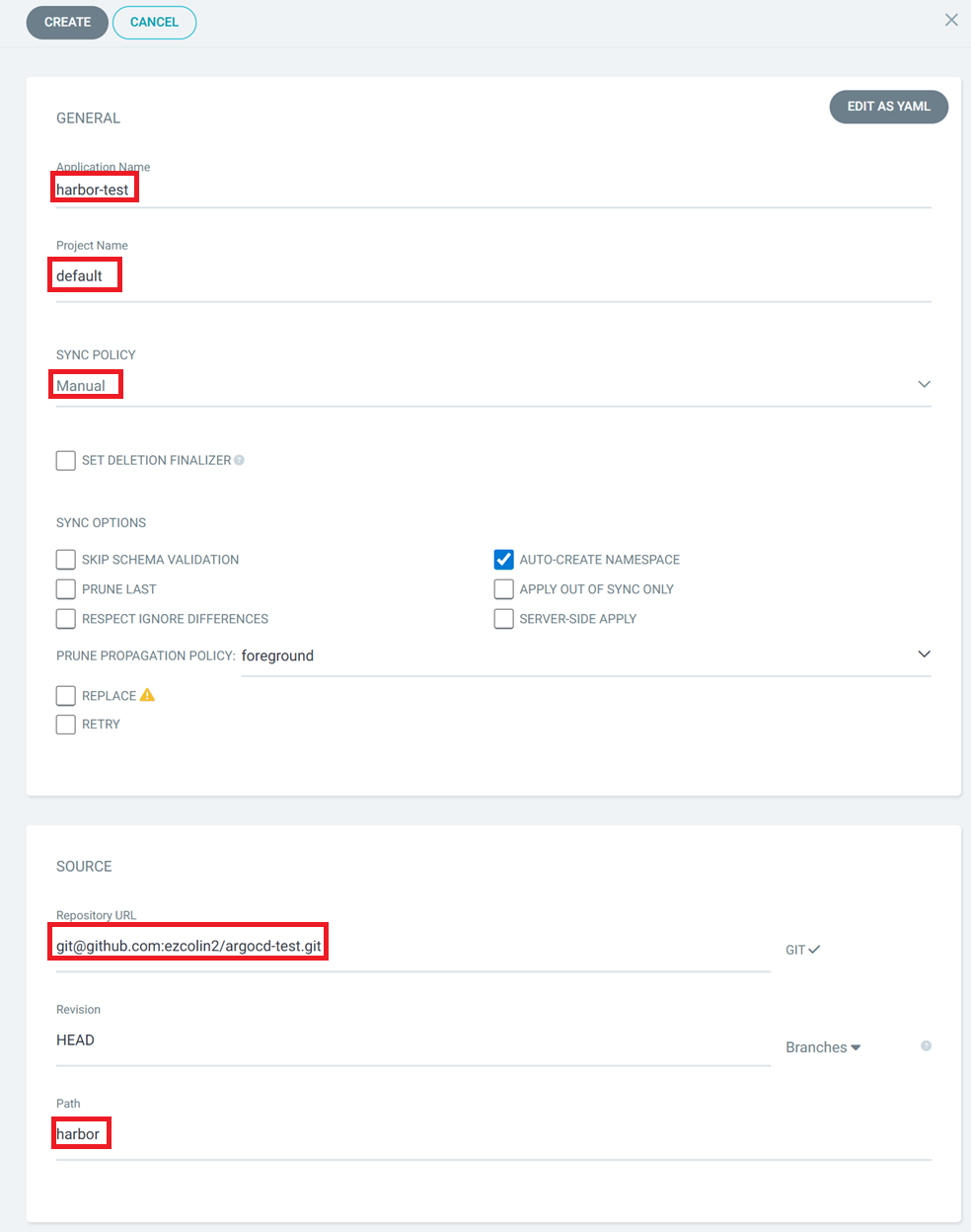
혹시 override-harbor-values.yaml도 인식하지 않을까하는 걱정은 하지 않으셔도 됩니다.
유효한 k8s manifest 파일만 인식하기 때문에 harbor.yaml만 인식하고 이 안에 적힌대로 override-harbor-values.yaml을 참조하여 values.yaml을 override하게 됩니다.
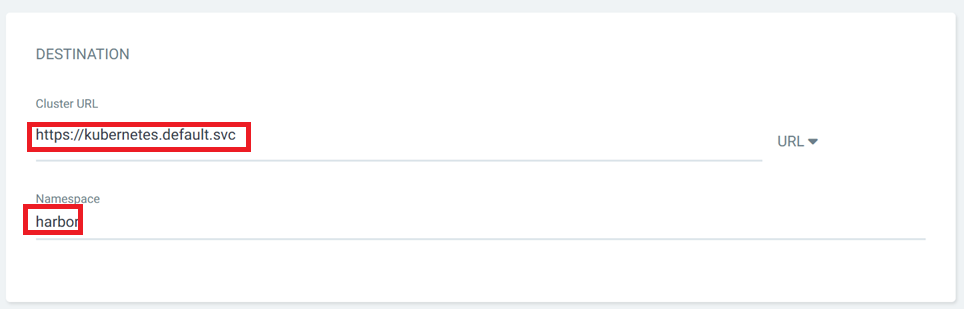
ArgoCD repository 생성
우선 저는 github에 private repository를 만들었고 이 repository와 ArgoCD를 연동할 것입니다.
다양한 방식으로 private repository와 연동할 수 있는데 ssh 방식을 사용해보겠습니다.
우선 ssh key 쌍을 생성합니다.
ssh-keygen -f argo-testGenerating public/private rsa key pair.
Enter passphrase (empty for no passphrase):
Enter same passphrase again:
Your identification has been saved in private-repo
Your public key has been saved in private-repo.pub
The key fingerprint is:
SHA256:zsfBsuwp0H6KsPOcUiqdU6friIKrkUQ2gQwbrHVqDac user@DESKTOP-1CRV5S2
The key's randomart image is:
+---[RSA 3072]----+
|B. |
|.=+ o |
|o= B |
|+ E . . |
| o . S o |
|.. + o+ + . |
|+..= = = o |
|+oB=.oo..o |
|*oo*B..+o |
+----[SHA256]-----+
key 쌍이 생성이 되었다면 public key는 github에, private key는 ArgoCD에 등록합니다.
private repository settings -> Deploy keys -> Add deploy key로 접속해서 public key를 등록합니다.

이제 ArgoCD의 settings -> Repositories로 들어갑니다.
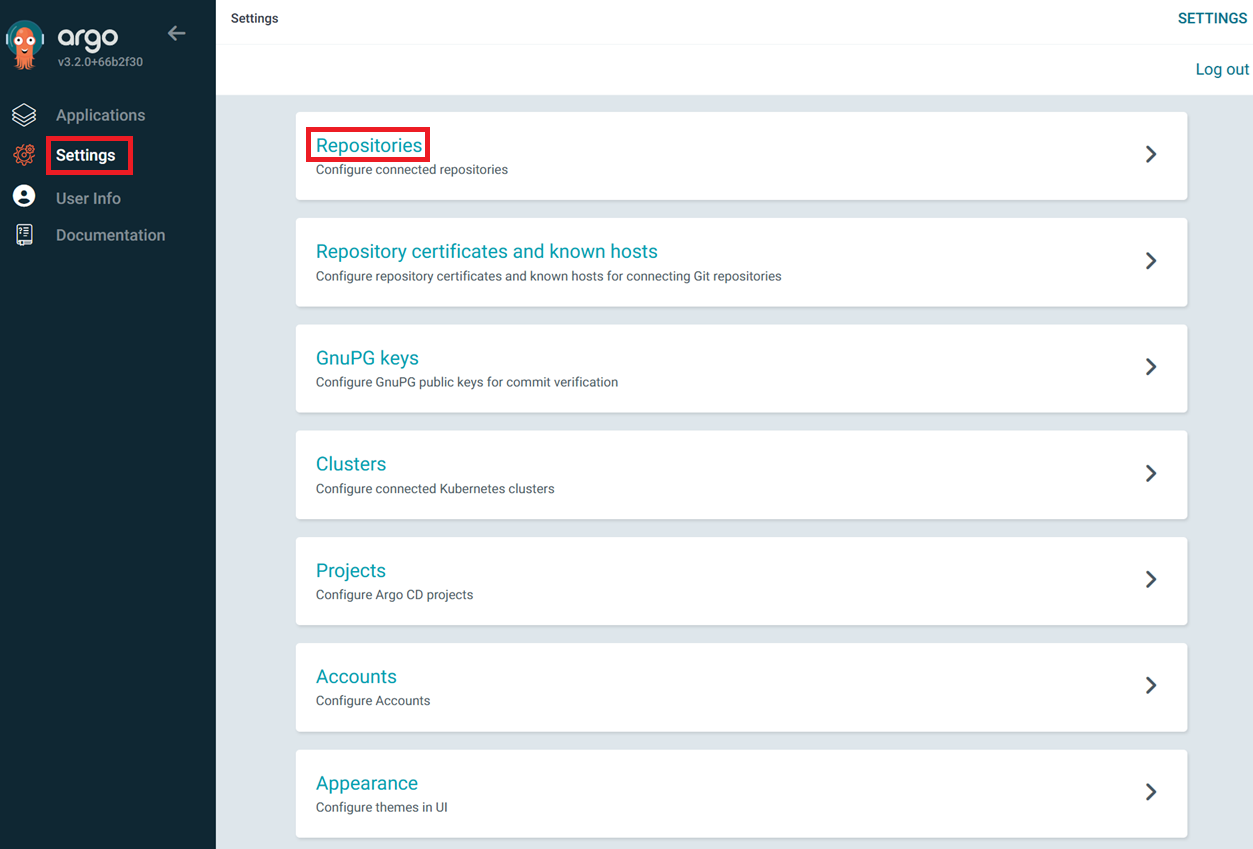
connect repo로 들어갑니다.
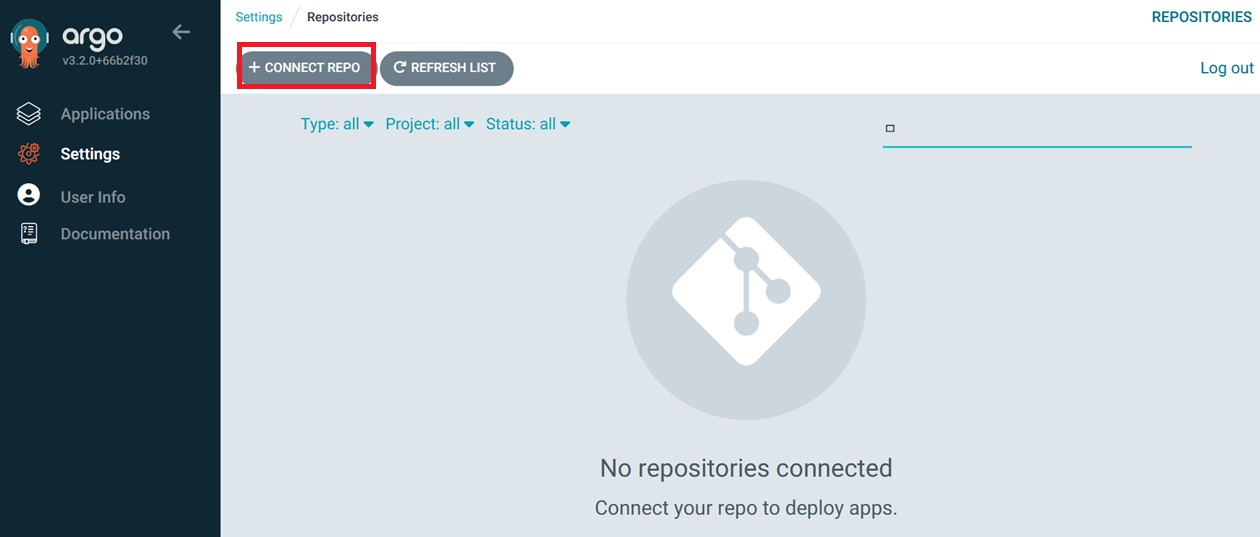
ssh key 방식으로 바꾸고 private repository의 ssh 주소를 입력합니다.
HTTP/HTTPS repository 주소가 아닌 SSH repository 주소를 입력해야 합니다.
private key를 입력합니다.

아래처럼 connection status가 Successful이면 성공합니다.
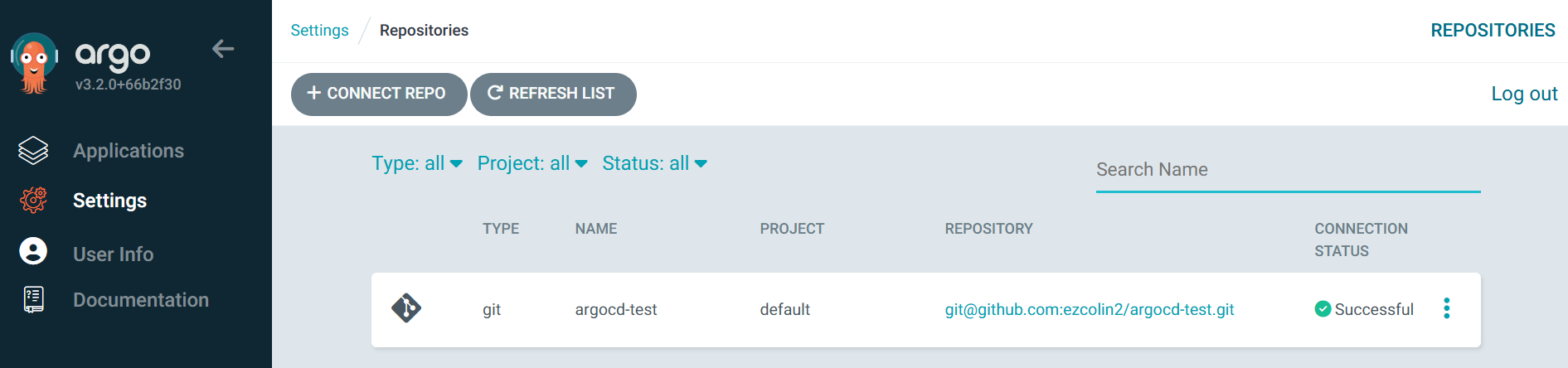
참고로 git repository에 k8s manifest 파일이 하나도 없다면 연결에 실패하기 때문에 먼저 k8s manifest를 생성하고 repository 연결을 진행해야 합니다.
마무리
이제 접속해봅시다.
https://192.168.35.52.nip.io/를 host로 설정했고 이전 포스팅에서 배포했던 nginx ingress controller의 NodePort는 30443이기 때문에 https://192.168.35.52.nip.io:30443/으로 접근하면 dashboard에 접근이 가능해야 합니다.
default admin 비밀번호는 Harbor12345이므로 접속해봅시다.
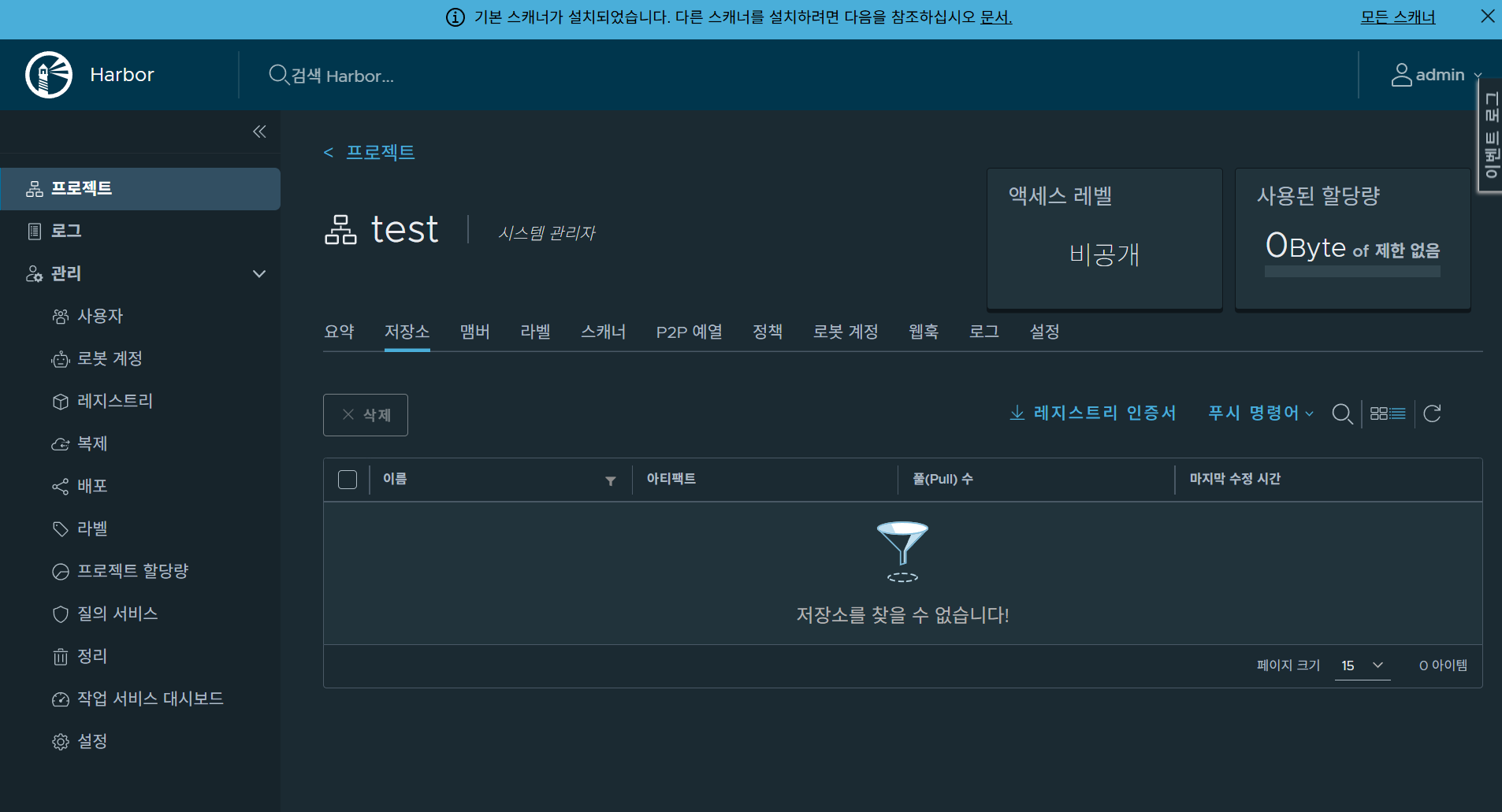
Harbor registry에 image를 push 하는 명령어는 다음과 같습니다.
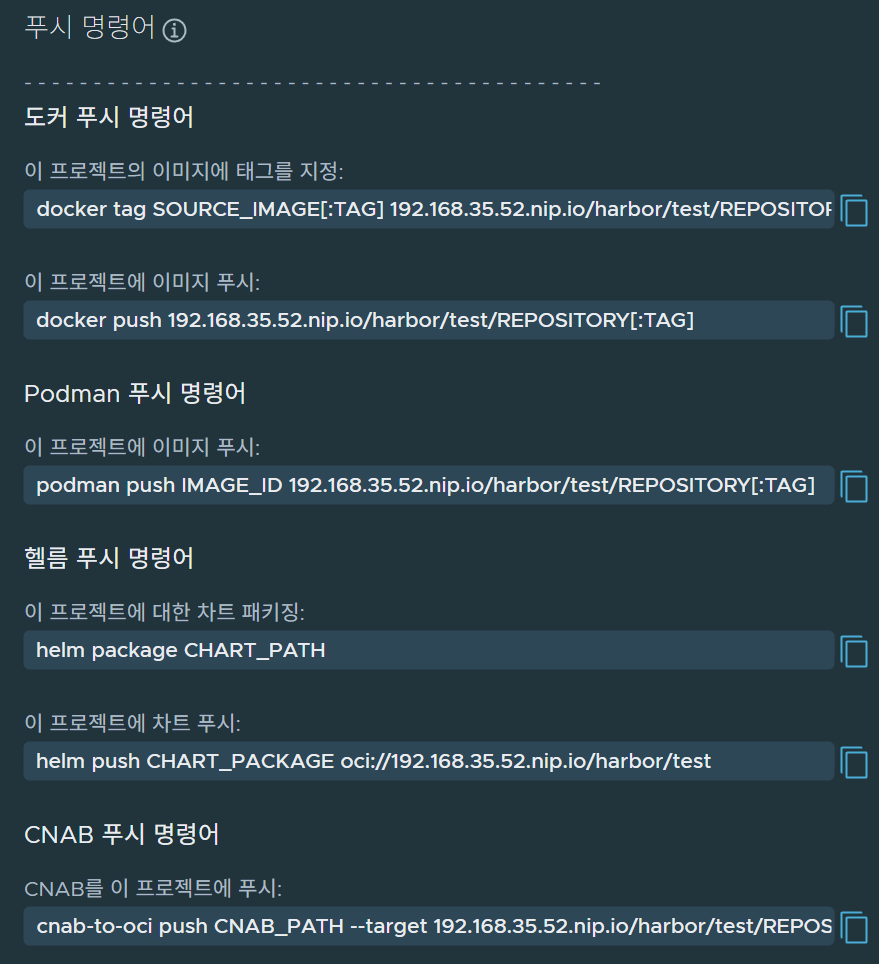
하지만 주의해야 할 점은 이전 포스팅대로 진행했다면 Nginx Ingress Controller가 NodePort 타입의 서비스로 되어 있습니다.
그렇기 때문에 docker tag를 설정할 때, 192.168.35.52.nip.io:30443으로 설정을 하셔야 합니다.
물론 NodePort 타입이 아니라면 굳이 포트를 붙이지 않아도 됩니다.
그리고 인증서를 신뢰하지 않기 때문에 Harbor의 CA 인증서를 신뢰하게 설정을 하거나 insecure-registry 설정을 하면 됩니다.
'공부 > DevOps' 카테고리의 다른 글
| [DevOps] Jenkins 분산 빌드 아키텍처와 kubernetes (0) | 2025.11.16 |
|---|---|
| [k8s] argoCD 배포 총 정리 (0) | 2025.11.09 |